> ## Documentation Index
> Fetch the complete documentation index at: https://dripart-docs-wan3-30off-promo.mintlify.site/llms.txt
> Use this file to discover all available pages before exploring further.
# ComfyUI Flux.1 Text-to-Image Workflow Example
> Generate text-to-image with the open-source Flux.1 model in ComfyUI, including full and FP8 checkpoint versions, with step-by-step workflow setup.
 Flux is one of the largest open-source text-to-image generation models, with 12B parameters and an original file size of approximately 23GB. It was developed by [Black Forest Labs](https://blackforestlabs.ai/), a team founded by former Stable Diffusion team members.
Flux is known for its excellent image quality and flexibility, capable of generating high-quality, diverse images.
Currently, the Flux.1 model has several main versions:
* **Flux.1 Pro:** The best performing model, closed-source, only available through API calls.
* **[Flux.1 \[dev\]:](https://huggingface.co/black-forest-labs/FLUX.1-dev)** Open-source but limited to non-commercial use, distilled from the Pro version, with performance close to the Pro version.
* **[Flux.1 \[schnell\]:](https://huggingface.co/black-forest-labs/FLUX.1-schnell)** Uses the Apache2.0 license, requires only 4 steps to generate images, suitable for low-spec hardware.
**Flux.1 Model Features**
* **Hybrid Architecture:** Combines the advantages of Transformer networks and diffusion models, effectively integrating text and image information, improving the alignment accuracy between generated images and prompts, with excellent fidelity to complex prompts.
* **Parameter Scale:** Flux has 12B parameters, capturing more complex pattern relationships and generating more realistic, diverse images.
* **Supports Multiple Styles:** Supports diverse styles, with excellent performance for various types of images.
In this example, we'll introduce text-to-image examples using both Flux.1 Dev and Flux.1 Schnell versions, including the full version model and the simplified FP8 Checkpoint version.
* **Flux Full Version:** Best performance, but requires larger VRAM resources and installation of multiple model files.
* **Flux FP8 Checkpoint:** Requires only one fp8 version of the model, but quality is slightly reduced compared to the full version.
All workflow images's Metadata contains the corresponding model download information. You can load the workflows by:
* Dragging them directly into ComfyUI
* Or using the menu `Workflows` -> `Open(ctrl+o)`
If you're not using the Desktop Version or some models can't be downloaded automatically, please refer to the manual installation sections to save the model files to the corresponding folder.
Make sure your ComfyUI is updated to the latest version before starting.
## Flux.1 Full Version Text-to-Image Example
If you can't download models from [black-forest-labs/FLUX.1-dev](https://huggingface.co/black-forest-labs/FLUX.1-dev), make sure you've logged into Huggingface and agreed to the corresponding repository's license agreement.
Flux is one of the largest open-source text-to-image generation models, with 12B parameters and an original file size of approximately 23GB. It was developed by [Black Forest Labs](https://blackforestlabs.ai/), a team founded by former Stable Diffusion team members.
Flux is known for its excellent image quality and flexibility, capable of generating high-quality, diverse images.
Currently, the Flux.1 model has several main versions:
* **Flux.1 Pro:** The best performing model, closed-source, only available through API calls.
* **[Flux.1 \[dev\]:](https://huggingface.co/black-forest-labs/FLUX.1-dev)** Open-source but limited to non-commercial use, distilled from the Pro version, with performance close to the Pro version.
* **[Flux.1 \[schnell\]:](https://huggingface.co/black-forest-labs/FLUX.1-schnell)** Uses the Apache2.0 license, requires only 4 steps to generate images, suitable for low-spec hardware.
**Flux.1 Model Features**
* **Hybrid Architecture:** Combines the advantages of Transformer networks and diffusion models, effectively integrating text and image information, improving the alignment accuracy between generated images and prompts, with excellent fidelity to complex prompts.
* **Parameter Scale:** Flux has 12B parameters, capturing more complex pattern relationships and generating more realistic, diverse images.
* **Supports Multiple Styles:** Supports diverse styles, with excellent performance for various types of images.
In this example, we'll introduce text-to-image examples using both Flux.1 Dev and Flux.1 Schnell versions, including the full version model and the simplified FP8 Checkpoint version.
* **Flux Full Version:** Best performance, but requires larger VRAM resources and installation of multiple model files.
* **Flux FP8 Checkpoint:** Requires only one fp8 version of the model, but quality is slightly reduced compared to the full version.
All workflow images's Metadata contains the corresponding model download information. You can load the workflows by:
* Dragging them directly into ComfyUI
* Or using the menu `Workflows` -> `Open(ctrl+o)`
If you're not using the Desktop Version or some models can't be downloaded automatically, please refer to the manual installation sections to save the model files to the corresponding folder.
Make sure your ComfyUI is updated to the latest version before starting.
## Flux.1 Full Version Text-to-Image Example
If you can't download models from [black-forest-labs/FLUX.1-dev](https://huggingface.co/black-forest-labs/FLUX.1-dev), make sure you've logged into Huggingface and agreed to the corresponding repository's license agreement.
 ### Flux.1 Dev
Flux.1 Dev fp8: Text to Image
Generate images using Flux.1 Dev fp8 quantized version. Suitable for devices with limited VRAM, requires only one model file, but image quality is slightly reduced compared to the full version.
 Run this workflow on Comfy Cloud
Download JSON or search "Flux.1 Dev fp8" in Template Library
**Example output**

#### 1. Workflow File
#### 2. Manual Model Installation
* The `flux1-dev.safetensors` file requires agreeing to the [black-forest-labs/FLUX.1-dev](https://huggingface.co/black-forest-labs/FLUX.1-dev) agreement before downloading via browser.
* If your VRAM is low, you can try using [t5xxl\_fp8\_e4m3fn.safetensors](https://huggingface.co/comfyanonymous/flux_text_encoders/blob/main/t5xxl_fp8_e4m3fn.safetensors?download=true) to replace the `t5xxl_fp16.safetensors` file.
Please download the following model files:
* [clip\_l.safetensors](https://huggingface.co/comfyanonymous/flux_text_encoders/blob/main/clip_l.safetensors?download=true)
* [t5xxl\_fp16.safetensors](https://huggingface.co/comfyanonymous/flux_text_encoders/blob/main/t5xxl_fp16.safetensors?download=true) Recommended when your VRAM is greater than 32GB.
* [ae.safetensors](https://huggingface.co/black-forest-labs/FLUX.1-schnell/blob/main/ae.safetensors?download=true)
* [flux1-dev.safetensors](https://huggingface.co/black-forest-labs/FLUX.1-dev/blob/main/flux1-dev.safetensors)
Storage location:
```
ComfyUI/
├── models/
│ ├── text_encoders/
│ │ ├── clip_l.safetensors
│ │ └── t5xxl_fp16.safetensors
│ ├── vae/
│ │ └── ae.safetensors
│ └── diffusion_models/
│ └── flux1-dev.safetensors
```
#### 3. Steps to Run the Workflow
Please refer to the image below to ensure all model files are loaded correctly
Run this workflow on Comfy Cloud
Download JSON or search "Flux.1 Dev fp8" in Template Library
**Example output**

#### 1. Workflow File
#### 2. Manual Model Installation
* The `flux1-dev.safetensors` file requires agreeing to the [black-forest-labs/FLUX.1-dev](https://huggingface.co/black-forest-labs/FLUX.1-dev) agreement before downloading via browser.
* If your VRAM is low, you can try using [t5xxl\_fp8\_e4m3fn.safetensors](https://huggingface.co/comfyanonymous/flux_text_encoders/blob/main/t5xxl_fp8_e4m3fn.safetensors?download=true) to replace the `t5xxl_fp16.safetensors` file.
Please download the following model files:
* [clip\_l.safetensors](https://huggingface.co/comfyanonymous/flux_text_encoders/blob/main/clip_l.safetensors?download=true)
* [t5xxl\_fp16.safetensors](https://huggingface.co/comfyanonymous/flux_text_encoders/blob/main/t5xxl_fp16.safetensors?download=true) Recommended when your VRAM is greater than 32GB.
* [ae.safetensors](https://huggingface.co/black-forest-labs/FLUX.1-schnell/blob/main/ae.safetensors?download=true)
* [flux1-dev.safetensors](https://huggingface.co/black-forest-labs/FLUX.1-dev/blob/main/flux1-dev.safetensors)
Storage location:
```
ComfyUI/
├── models/
│ ├── text_encoders/
│ │ ├── clip_l.safetensors
│ │ └── t5xxl_fp16.safetensors
│ ├── vae/
│ │ └── ae.safetensors
│ └── diffusion_models/
│ └── flux1-dev.safetensors
```
#### 3. Steps to Run the Workflow
Please refer to the image below to ensure all model files are loaded correctly
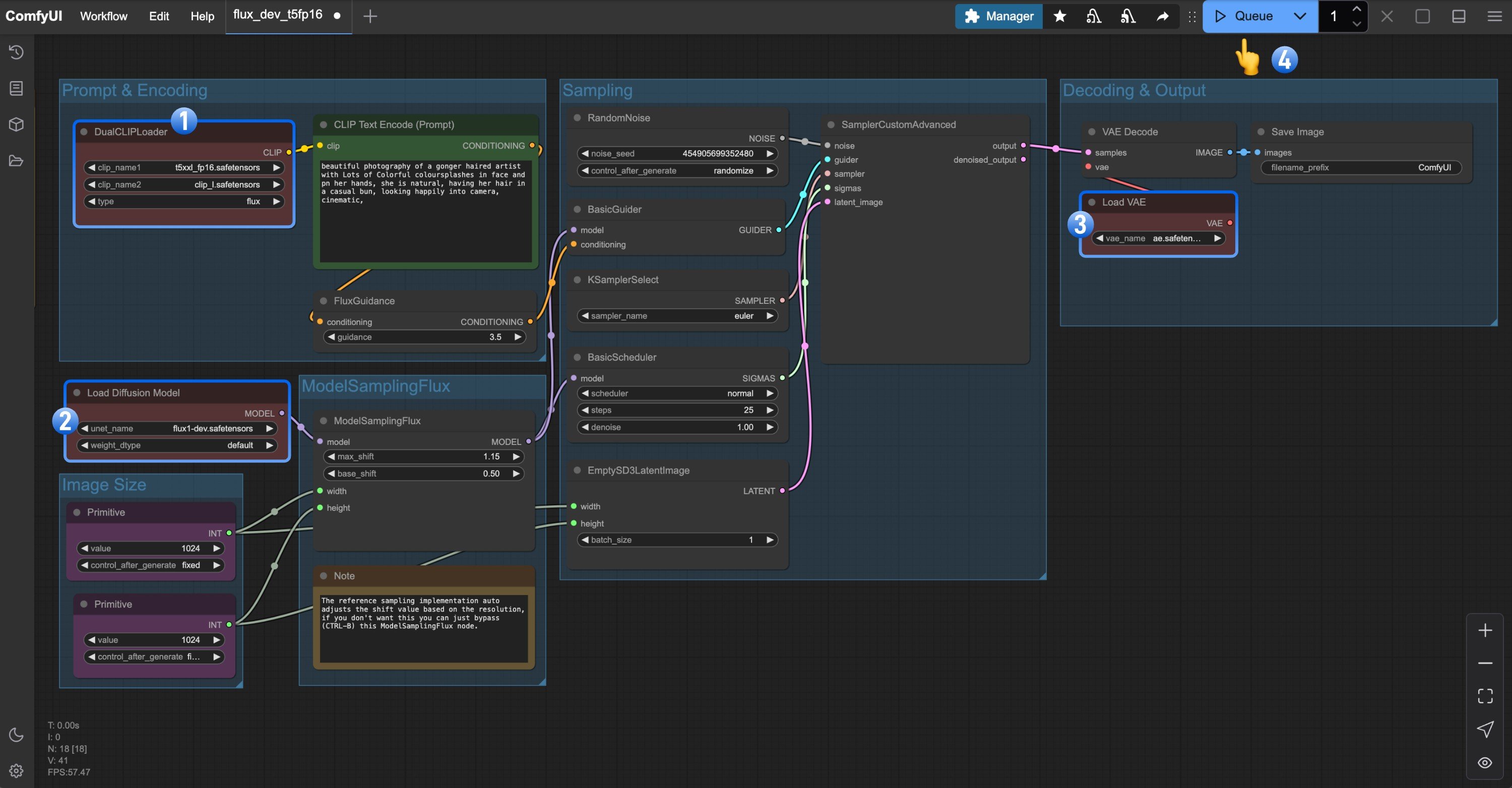 1. Ensure the `DualCLIPLoader` node has the following models loaded:
* clip\_name1: t5xxl\_fp16.safetensors
* clip\_name2: clip\_l.safetensors
2. Ensure the `Load Diffusion Model` node has `flux1-dev.safetensors` loaded
3. Make sure the `Load VAE` node has `ae.safetensors` loaded
4. Click the `Queue` button, or use the shortcut `Ctrl(cmd) + Enter` to run the workflow
Thanks to Flux's excellent prompt following capability, we don't need any negative prompts
### Flux.1 Schnell
1. Ensure the `DualCLIPLoader` node has the following models loaded:
* clip\_name1: t5xxl\_fp16.safetensors
* clip\_name2: clip\_l.safetensors
2. Ensure the `Load Diffusion Model` node has `flux1-dev.safetensors` loaded
3. Make sure the `Load VAE` node has `ae.safetensors` loaded
4. Click the `Queue` button, or use the shortcut `Ctrl(cmd) + Enter` to run the workflow
Thanks to Flux's excellent prompt following capability, we don't need any negative prompts
### Flux.1 Schnell
Flux.1 Schnell FP8
Quickly generate images with Flux.1 Schnell fp8 quantized version. Ideal for low-end hardware, requires only 4 steps to generate images.
 Run this workflow on Comfy Cloud
Download JSON or search "Flux.1 Schnell" in Template Library
#### 1. Workflow File
#### 2. Manual Models Installation
In this workflow, only two model files are different from the Flux1 Dev version workflow. For t5xxl, you can still use the fp16 version for better results.
* **t5xxl\_fp16.safetensors** -> **t5xxl\_fp8.safetensors**
* **flux1-dev.safetensors** -> **flux1-schnell.safetensors**
Complete model file list:
* [clip\_l.safetensors](https://huggingface.co/comfyanonymous/flux_text_encoders/blob/main/clip_l.safetensors?download=true)
* [t5xxl\_fp8\_e4m3fn.safetensors](https://huggingface.co/comfyanonymous/flux_text_encoders/blob/main/t5xxl_fp8_e4m3fn.safetensors?download=true)
* [ae.safetensors](https://huggingface.co/black-forest-labs/FLUX.1-schnell/blob/main/ae.safetensors?download=true)
* [flux1-schnell.safetensors](https://huggingface.co/black-forest-labs/FLUX.1-schnell/blob/main/flux1-schnell.safetensors)
File storage location:
```
ComfyUI/
├── models/
│ ├── text_encoders/
│ │ ├── clip_l.safetensors
│ │ └── t5xxl_fp8_e4m3fn.safetensors
│ ├── vae/
│ │ └── ae.safetensors
│ └── diffusion_models/
│ └── flux1-schnell.safetensors
```
#### 3. Steps to Run the Workflow
Run this workflow on Comfy Cloud
Download JSON or search "Flux.1 Schnell" in Template Library
#### 1. Workflow File
#### 2. Manual Models Installation
In this workflow, only two model files are different from the Flux1 Dev version workflow. For t5xxl, you can still use the fp16 version for better results.
* **t5xxl\_fp16.safetensors** -> **t5xxl\_fp8.safetensors**
* **flux1-dev.safetensors** -> **flux1-schnell.safetensors**
Complete model file list:
* [clip\_l.safetensors](https://huggingface.co/comfyanonymous/flux_text_encoders/blob/main/clip_l.safetensors?download=true)
* [t5xxl\_fp8\_e4m3fn.safetensors](https://huggingface.co/comfyanonymous/flux_text_encoders/blob/main/t5xxl_fp8_e4m3fn.safetensors?download=true)
* [ae.safetensors](https://huggingface.co/black-forest-labs/FLUX.1-schnell/blob/main/ae.safetensors?download=true)
* [flux1-schnell.safetensors](https://huggingface.co/black-forest-labs/FLUX.1-schnell/blob/main/flux1-schnell.safetensors)
File storage location:
```
ComfyUI/
├── models/
│ ├── text_encoders/
│ │ ├── clip_l.safetensors
│ │ └── t5xxl_fp8_e4m3fn.safetensors
│ ├── vae/
│ │ └── ae.safetensors
│ └── diffusion_models/
│ └── flux1-schnell.safetensors
```
#### 3. Steps to Run the Workflow
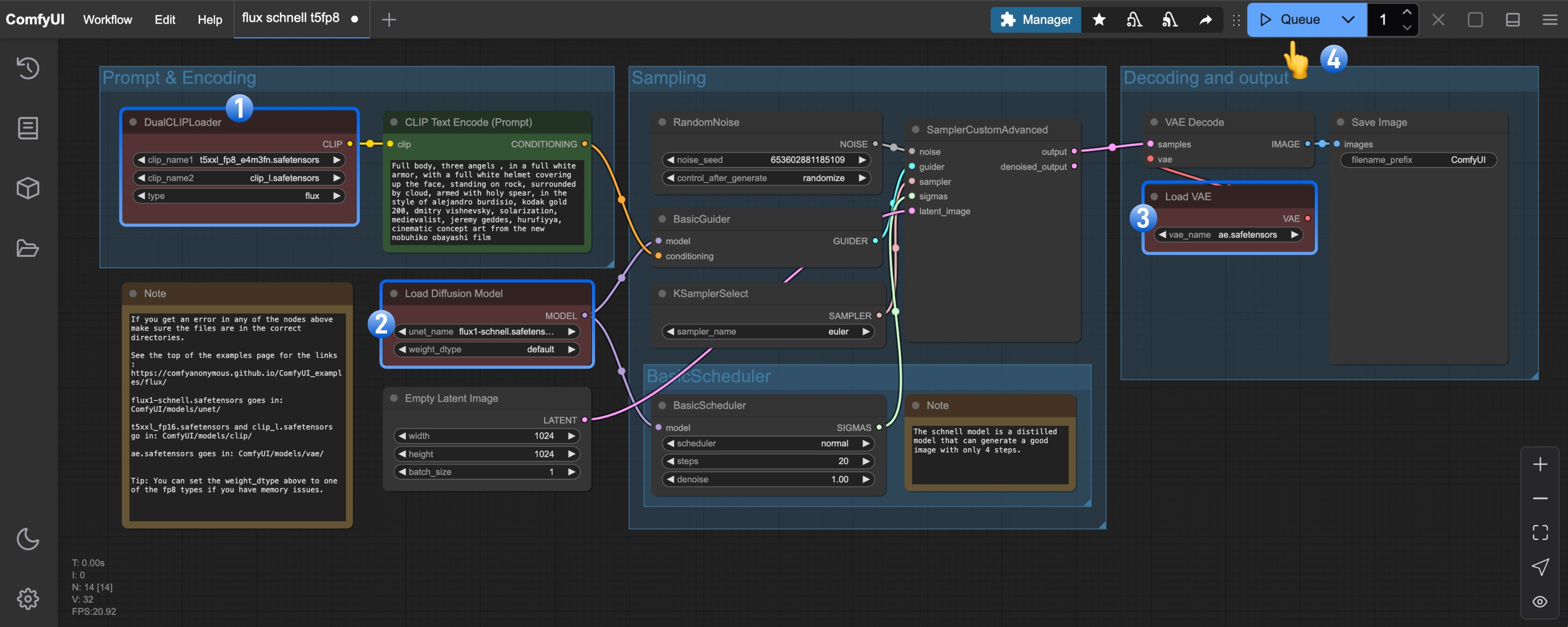 1. Ensure the `DualCLIPLoader` node has the following models loaded:
* clip\_name1: t5xxl\_fp8\_e4m3fn.safetensors
* clip\_name2: clip\_l.safetensors
2. Ensure the `Load Diffusion Model` node has `flux1-schnell.safetensors` loaded
3. Ensure the `Load VAE` node has `ae.safetensors` loaded
4. Click the `Queue` button, or use the shortcut `Ctrl(cmd) + Enter` to run the workflow
## Flux.1 FP8 Checkpoint Version Text-to-Image Example
The fp8 version is a quantized version of the original Flux.1 fp16 version.
To some extent, the quality of this version will be lower than that of the fp16 version,
but it also requires less VRAM, and you only need to install one model file to try running it.
### Flux.1 Dev
1. Ensure the `DualCLIPLoader` node has the following models loaded:
* clip\_name1: t5xxl\_fp8\_e4m3fn.safetensors
* clip\_name2: clip\_l.safetensors
2. Ensure the `Load Diffusion Model` node has `flux1-schnell.safetensors` loaded
3. Ensure the `Load VAE` node has `ae.safetensors` loaded
4. Click the `Queue` button, or use the shortcut `Ctrl(cmd) + Enter` to run the workflow
## Flux.1 FP8 Checkpoint Version Text-to-Image Example
The fp8 version is a quantized version of the original Flux.1 fp16 version.
To some extent, the quality of this version will be lower than that of the fp16 version,
but it also requires less VRAM, and you only need to install one model file to try running it.
### Flux.1 Dev
Flux.1 Dev: Text to Image
Generate high-quality images with Flux Dev full version. Requires larger VRAM and multiple model files, but provides the best prompt following capability.
 Run this workflow on Comfy Cloud
Download JSON or search "Flux.1 Dev FP8" in Template Library
**Example output**

Please download the image below and drag it into ComfyUI to load the workflow.
Please download [flux1-dev-fp8.safetensors](https://huggingface.co/Comfy-Org/flux1-dev/blob/main/flux1-dev-fp8.safetensors?download=true) and save it to the `ComfyUI/models/checkpoints/` directory.
Ensure that the corresponding `Load Checkpoint` node loads `flux1-dev-fp8.safetensors`, and you can try to run the workflow.
### Flux.1 Schnell
Run this workflow on Comfy Cloud
Download JSON or search "Flux.1 Dev FP8" in Template Library
**Example output**

Please download the image below and drag it into ComfyUI to load the workflow.
Please download [flux1-dev-fp8.safetensors](https://huggingface.co/Comfy-Org/flux1-dev/blob/main/flux1-dev-fp8.safetensors?download=true) and save it to the `ComfyUI/models/checkpoints/` directory.
Ensure that the corresponding `Load Checkpoint` node loads `flux1-dev-fp8.safetensors`, and you can try to run the workflow.
### Flux.1 Schnell
Flux.1 Schnell FP8
Quickly generate images with Flux.1 Schnell fp8 quantized version. Ideal for low-end hardware, requires only 4 steps to generate images.
Run this workflow on Comfy Cloud
Download JSON or search "Flux.1 Schnell FP8" in Template Library
Please download the image below and drag it into ComfyUI to load the workflow.
Please download [flux1-schnell-fp8.safetensors](https://huggingface.co/Comfy-Org/flux1-schnell/blob/main/flux1-schnell-fp8.safetensors?download=true) and save it to the `ComfyUI/models/checkpoints/` directory.
Ensure that the corresponding `Load Checkpoint` node loads `flux1-schnell-fp8.safetensors`, and you can try to run the workflow.